Juggling several shows? Want to make your podcast premium without switching hosts? You can connect podcast feeds from any other podcast host to Steady and offer them to your members – no re-uploading needed.
Connect as many externally hosted podcast feeds as you like to your Steady project
Choose which plans get access to each podcast
Offer each podcast to your members via a private RSS feed and/or on Spotify
If you only need one podcast and aren't tied to another host, you can also host your podcast directly on Steady.
In the sidebar, go to Settings → Podcast Feeds and click Add podcast (the + button).
Choose Host externally and click Continue.
Paste the URL of your premium (unlisted) RSS feed into Podcast Feed URL – you get it from your podcast host – and click Continue. The feed needs at least one episode.
To confirm the feed is yours, we send a verification code to the owner email address in the RSS feed. Enter the code and click Continue.
On your podcast's page, give it a Podcast name if you like – it's only shown on Steady and doesn't change your RSS feed.
Under Access, tick the plans whose members should get this podcast.
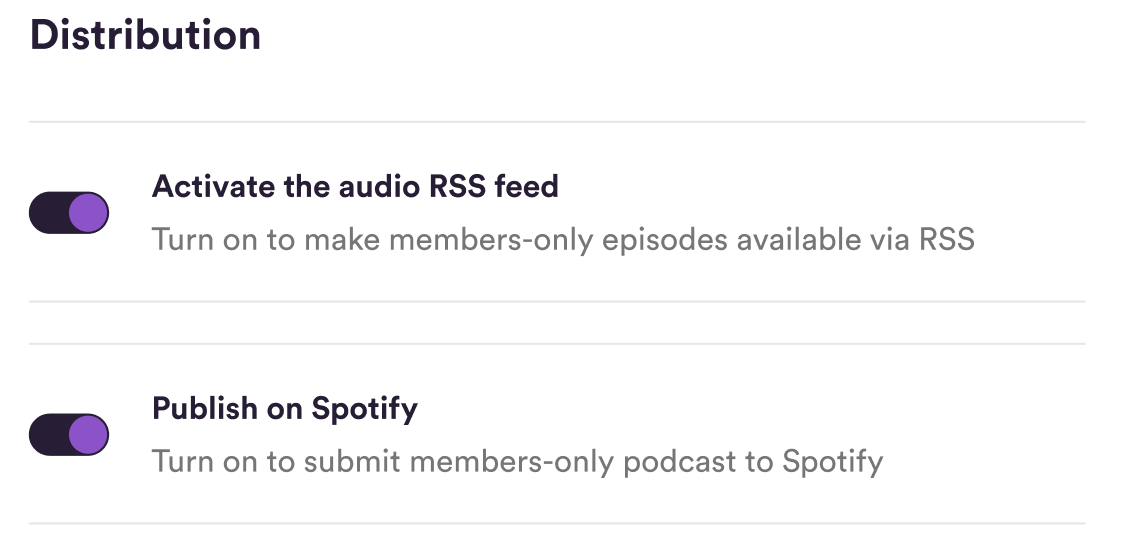
Under Distribution, choose how members can listen: switch on Activate the audio RSS feed for podcast apps such as Apple Podcasts, Overcast or Pocket Casts, and Publish on Spotify if they should also be able to listen on Spotify.
Click Save.
That's it! Your podcast is now premium and connected to your plans. Want to see what members get? Here's how members subscribe to your podcast.

There's no limit to the number of external podcasts you can add, so you can run several podcasts in one Steady project, each with its own access settings.
On the Podcast Feeds page you see all your podcasts, where they're hosted and whether RSS and Spotify are active.
Click a podcast to change which plans get access or how it's distributed. To remove an external podcast, use Delete in its menu – your members then lose access to it via RSS and Spotify.
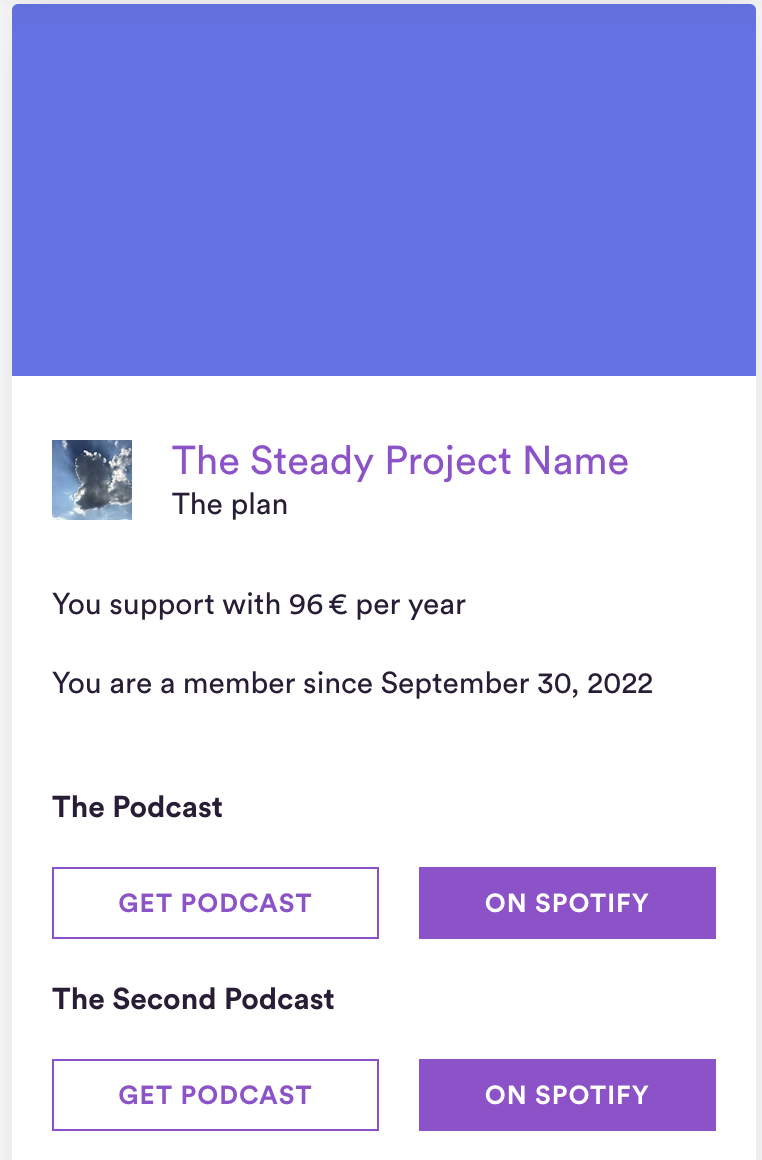
Your members see each podcast they have access to on their membership page, on the thank you page and in the email they receive after purchase.
A membership page with two podcasts looks like this:
Need help setting up feeds, connecting Spotify or adjusting your plans? Email us at [email protected].