Connect Claude to your Steady publication, then ask it about your numbers in plain language. For example: "How did my revenue develop over the last six months?" or "Why did more members leave in March?" Claude looks up the answer in your publication's stats.
You must be logged in to Steady as the owner of the publication.
You need a Claude account.
One connection per publication. If you run several publications, connect each one separately. Every publication has its own address.
Once you connect it, Claude can read your publication's information and statistics:
revenue over time (new, lost, recurring and total)
paying members over time (new, lost, recurring and total)
churn rate
trials: started, cancelled and converted to paid
a current snapshot of key statistics: members by type, monthly recurring revenue and how it changed over the last 30 days, churn and trial conversion rates, and free members
Claude can't change anything in your publication. It can't edit plans or posts, contact your members, or move money. The only thing it can send is feedback to Steady about the connection, and only if you allow that on the approval screen.
Claude only sees the one publication you connect.
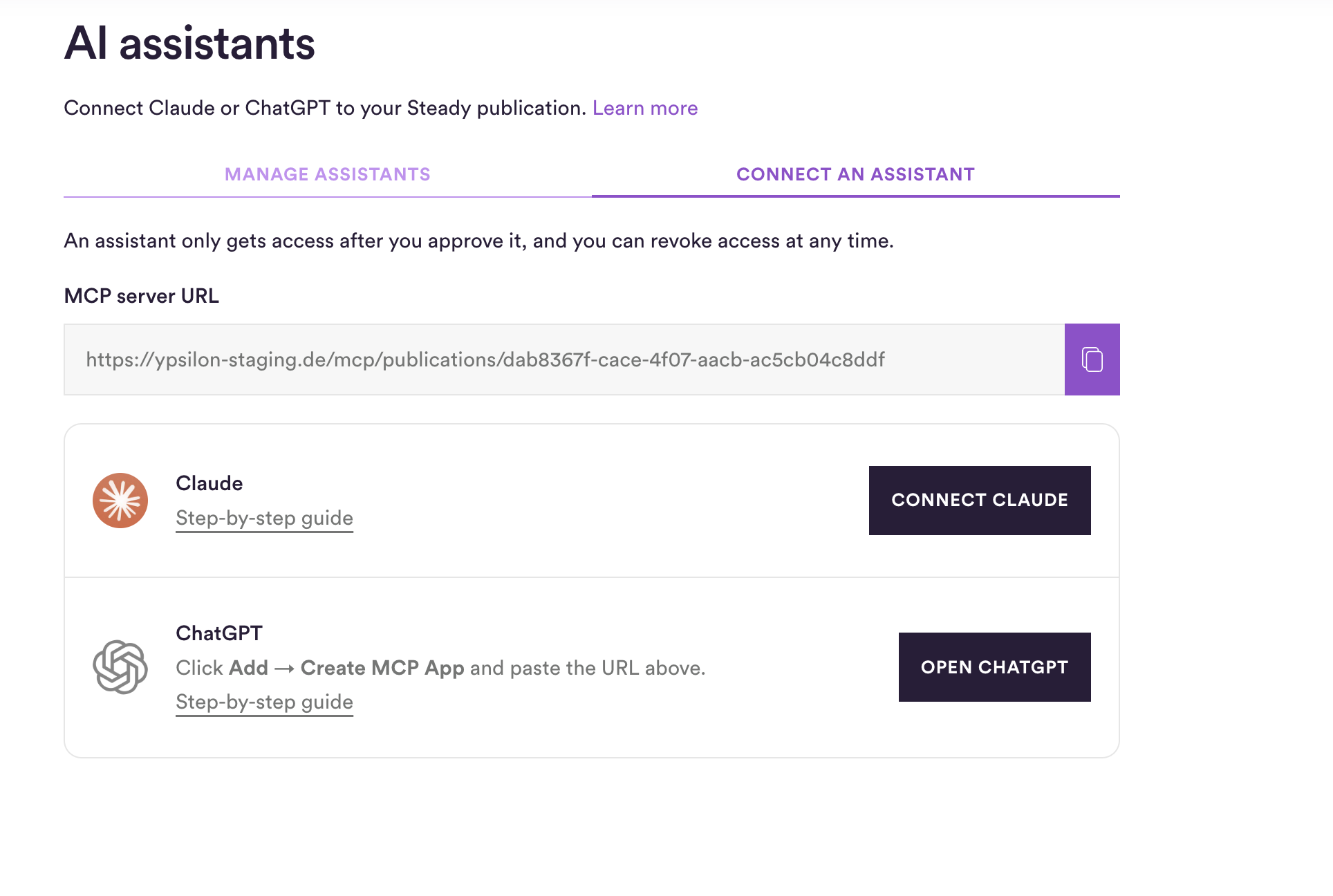
On Steady, go to Settings → AI assistants and open the Connect an assistant tab.
In the Claude row, click Connect Claude. Claude opens in a new window, with the add-connector dialog already filled in with your publication's name and address.
Claude will show a red notice saying the connector was suggested by an external link and asking you to check the name and URL. This is expected. Claude shows it every time a connector is filled in from a link instead of typed in by hand. Your connection is fine. Check that:
the name is your publication's name, and
the URL is the same as the MCP server URL on Steady's AI assistants page.
Then click Add.
Claude now lists Steady among your connectors. Click Connect.
Steady opens. Log in if Steady asks you to.
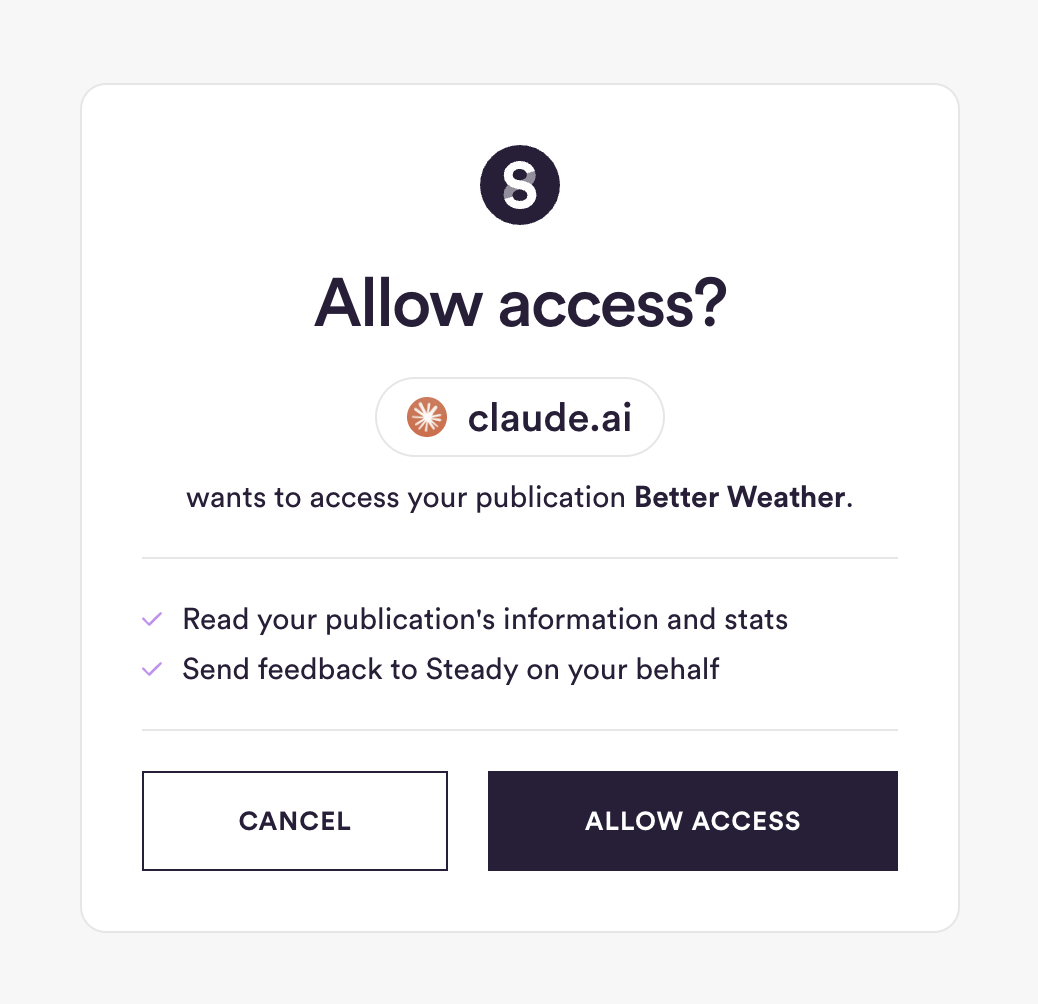
On the Allow access? screen, check the publication name and the permissions, then click Allow access. The button becomes clickable after a few seconds, so you have time to read what you're approving.
You're returned to Claude, and Steady shows as connected. Start a new chat and ask a question about your publication.
Use this approach if the button doesn't work for you, or if you'd rather type the details in yourself. Claude doesn't show the external-link notice on this path.
On Steady, go to Settings → AI assistants → Connect an assistant and copy the MCP server URL.
In Claude, open Customize → Connectors and click Add custom connector.
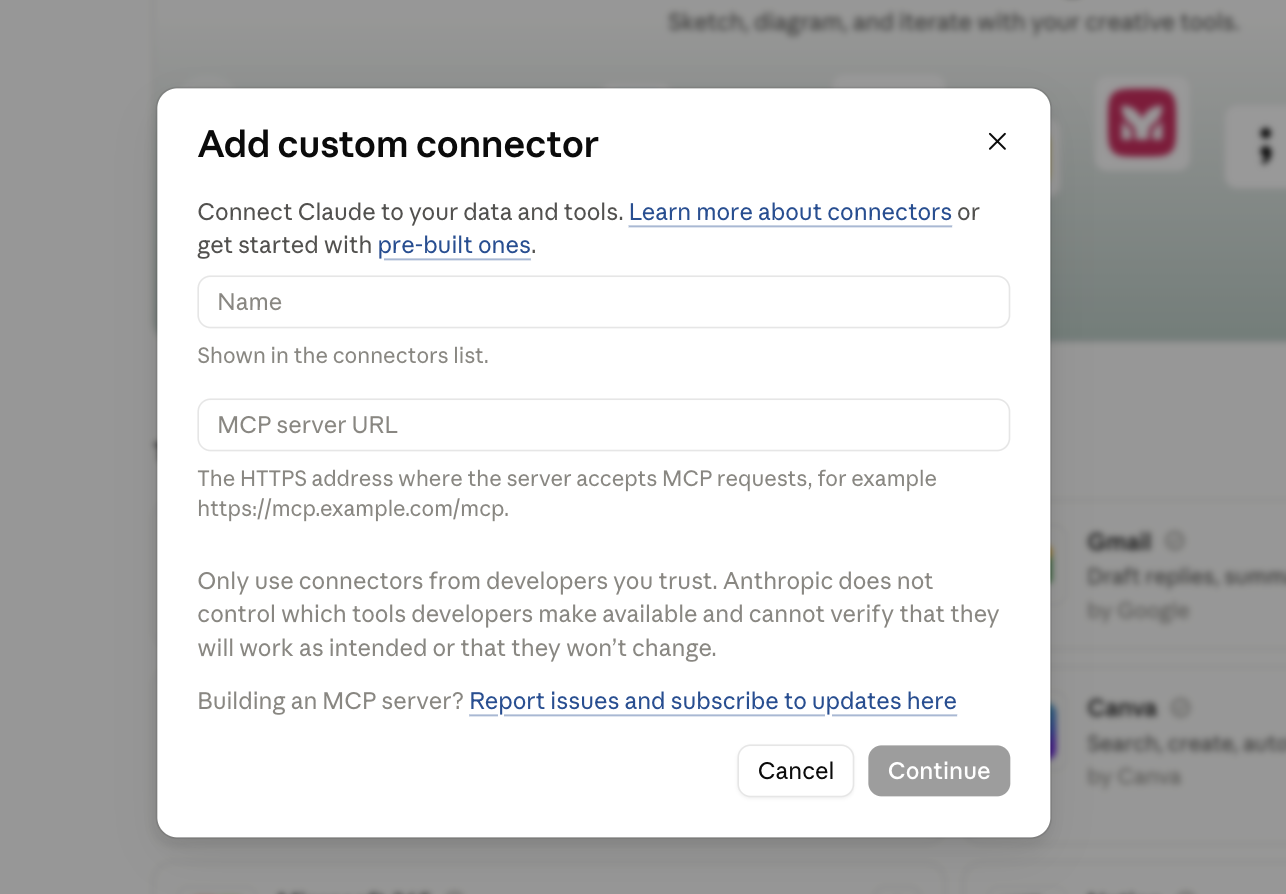
Enter a name, such as your publication's name, and paste the URL.
Click Add, then Connect.
Continue from step 5 of Option 1: log in to Steady and click Allow access.
In Claude Team and Enterprise organisations, only an owner of the Claude organisation can add custom connectors.
The Claude organisation owner adds the connector under Organization settings → Connectors, using the MCP server URL from Steady.
Members of the organisation then find it in their connectors and click Connect.
Even so, Steady only lets the publisher of the publication approve the connection. A colleague in the same Claude organisation can't connect to your publication with their own Steady login.
Claude Code, Claude's tool for the terminal, can connect to your publication too. Add the MCP server URL from Steady as a remote server in Claude Code, then approve the connection in Steady the same way: log in and click Allow access. [CHECK: final wording of the Claude Code steps]
Claude Code uses the same Steady icon. Under Manage assistants it appears as its own entry, Claude Code, separate from Claude.
Removing the connector in Claude does not end its access to your publication. Claude keeps its connection to Steady even after you remove it. If you add it again later, Claude can reconnect without asking you to approve it.
To end Claude's access, revoke it in Steady: Settings → AI assistants → Manage assistants → Revoke. More in Manage and revoke AI assistants.
I don't see "AI assistants" in Settings. Contact [email protected].
Steady says I'm not allowed to connect. Make sure you're logged in to Steady as the publication's owner.
Claude's answer looks wrong. Ask Claude which period and which numbers it used, and compare them with your Steady stats. Amounts are in your publication's currency.